Cloud Save Verification Issue for Overseas Users
If you see a popup asking you to verify a +86 phone number to unlock Cloud Save, it’s most likely related to how your account was registered.
Based on what we’ve observed, accounts registered through the Mainland China version of Gitee may be tagged in the system as “Mainland China users.” When using Cloud Save, these accounts can be required to bind a +86 Mainland China phone number for verification. If you don’t have a Mainland China phone number, you won’t be able to use the feature.
Accounts registered through the overseas version of Gitee are usually not tagged this way, so they don’t run into this restriction.
If you don’t have a +86 Mainland China phone number, we recommend registering a new overseas Gitee account by following the steps below.
Steps
Important: Pay close attention to the bold steps below. If done incorrectly, your account may still be marked as a “Mainland China user.”
Make sure your IP address is not located in Mainland China.
It’s recommended to use the Edge browser. Other browsers have not been fully tested, so success is not guaranteed.
You can optionally switch to the English version of Gitee using this link: https://gitee.com/language/en
Click “Sign Up” in the top-right corner of the homepage to go to the registration page.
Make sure you see the page shown below. If not, double-check Step 1 and Step 2.
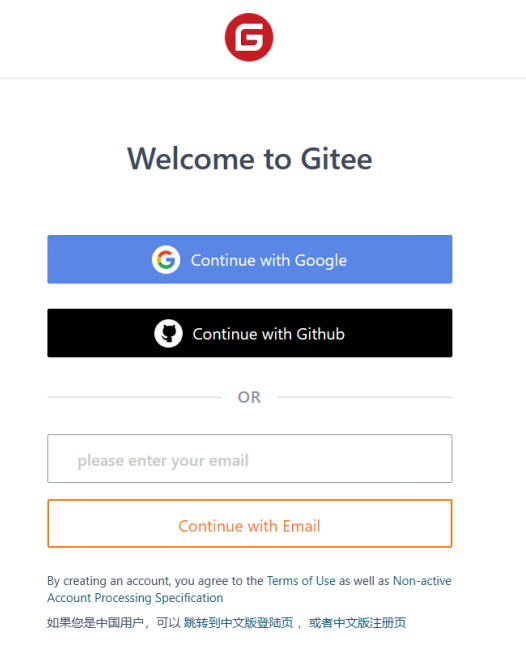
Overseas Gitee Login Page Enter your email address on that page.
The email address must not be linked to any existing Gitee account. Otherwise, the system will automatically redirect you to the login flow, and the account tag will not change. Example below:
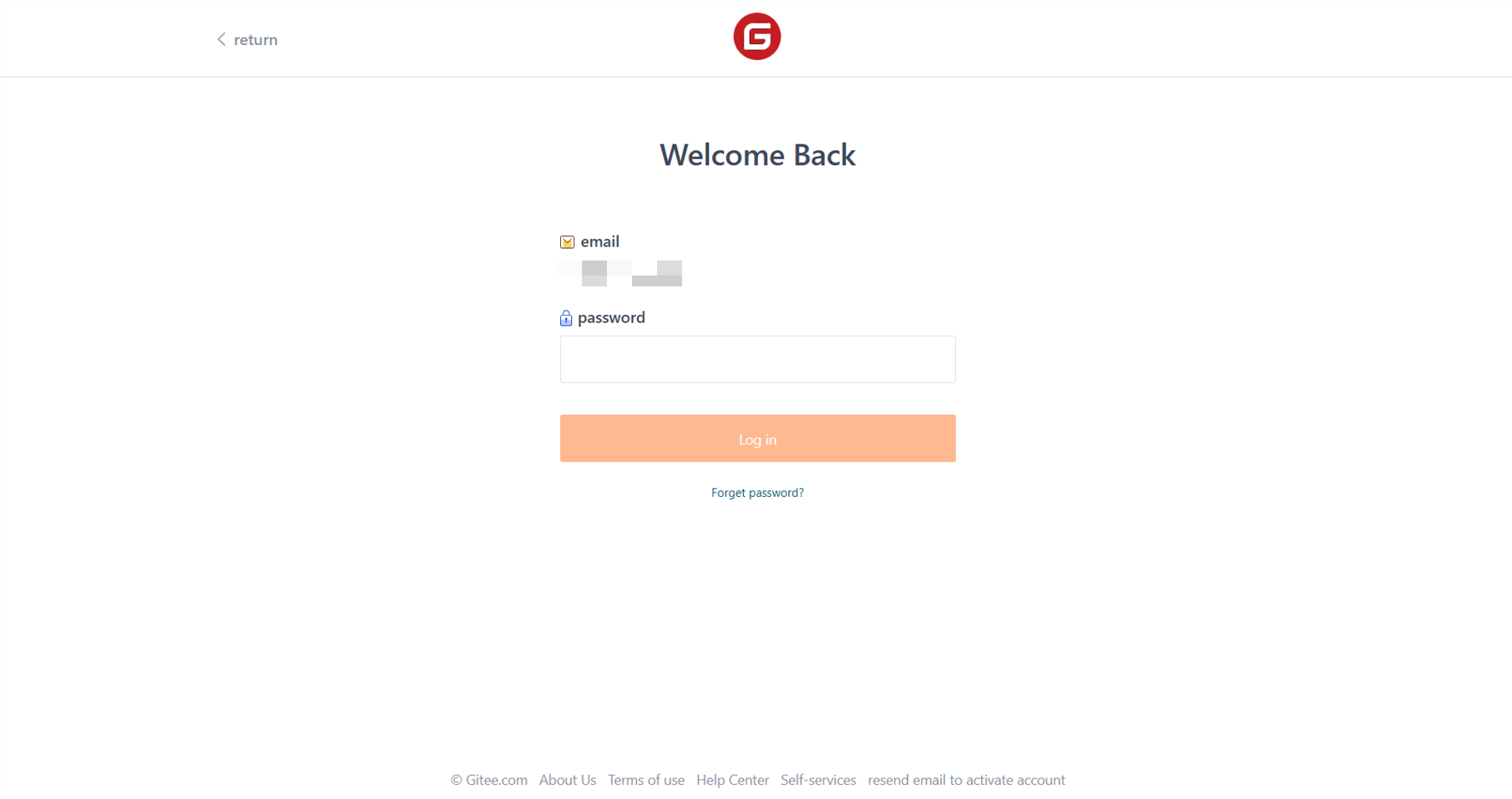
Incorrect Example Do NOT use an email address provided by a Mainland China company. Doing so may trigger a +86 phone number binding requirement and cause the account to be marked as a “Mainland China account.” Example below:
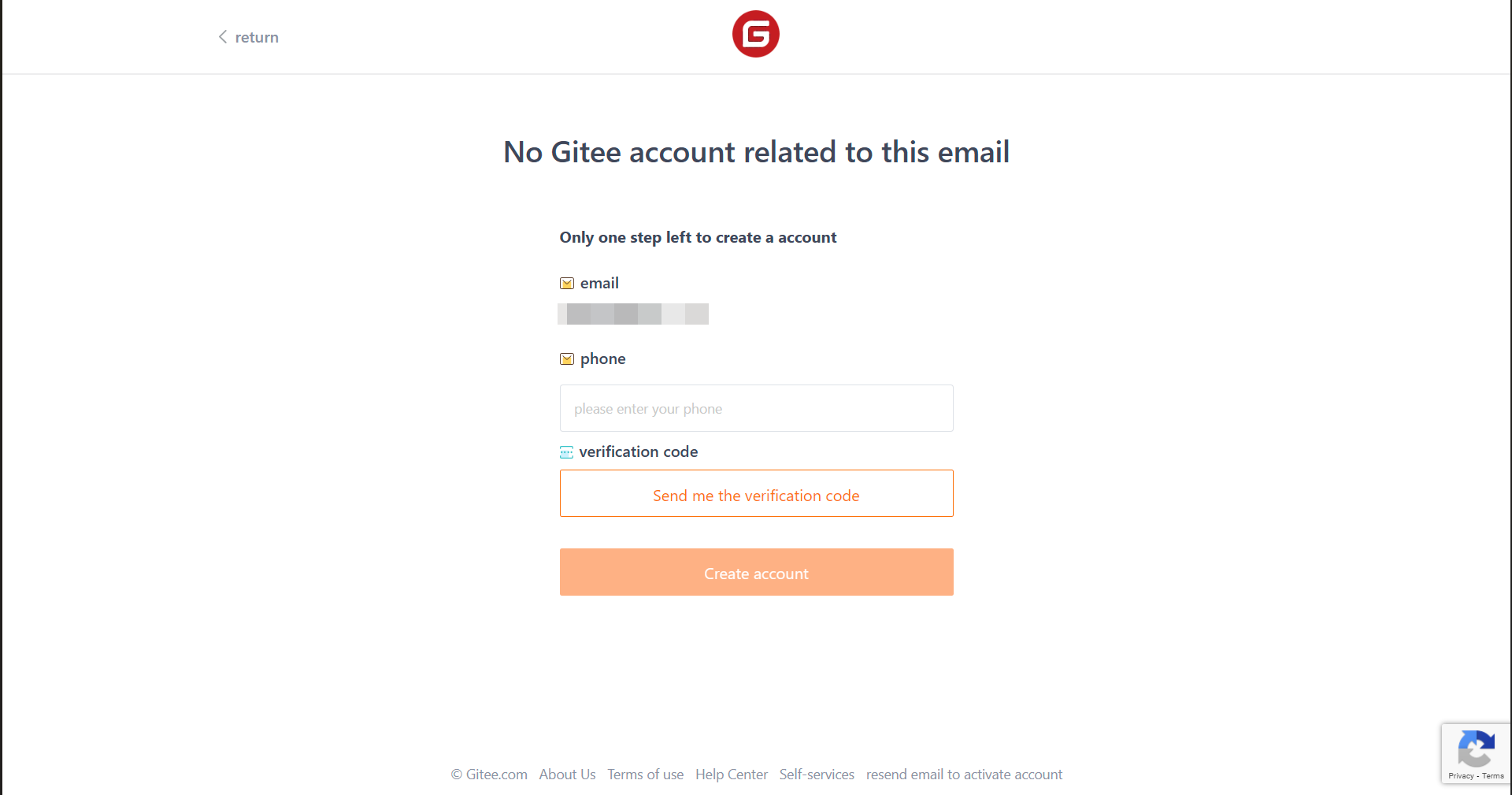
Incorrect Example
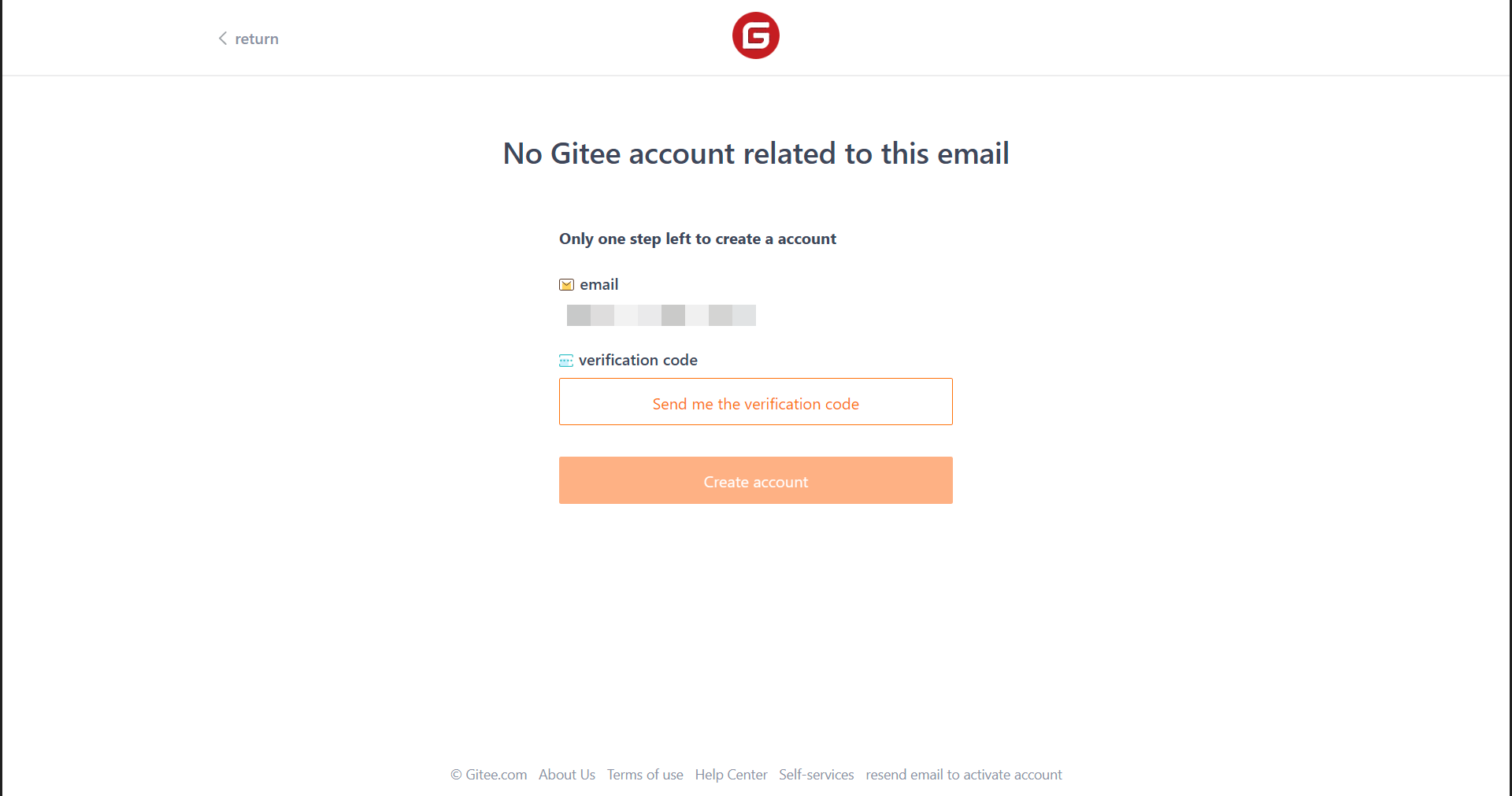
If you see the page shown below and all fields display normally, the registration flow is correct.
Click “Send Code,” check your email for the verification code, enter it in the field, and complete the registration.
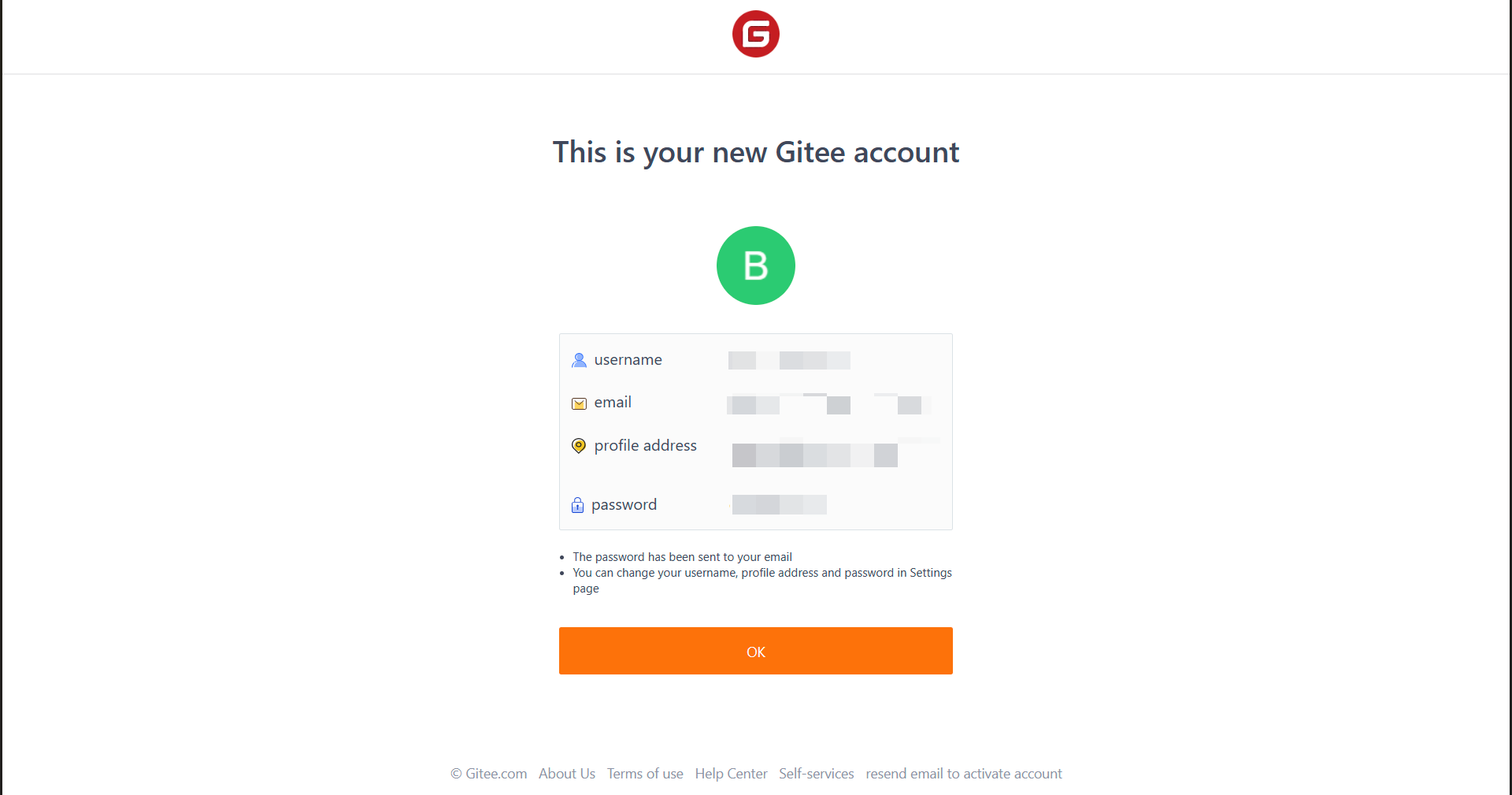
If you see the page below, your registration was successful.
You can now use Cloud Save with your new account.